Using the Espresso Machine Status Page

Table of Contents
Overview
This article explains how to access and customize the Espresso Machine status page, along with a breakdown of table data and installation definitions.
Instructions
Adding a new espresso machine
- Log in to the online platform C-sar.
- Navigate to Cafe > Assets.
- Switch to the Espresso Machine Status tab.
-
Click +Add espresso machine.

Exploring the Espresso Machine Status page
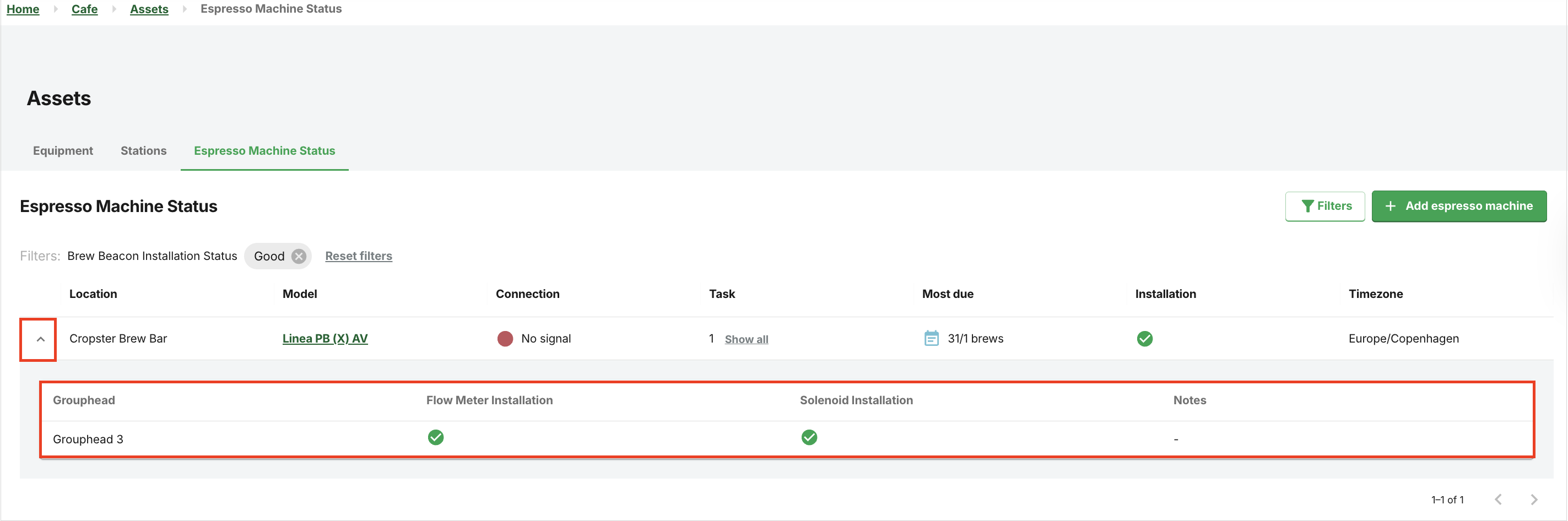
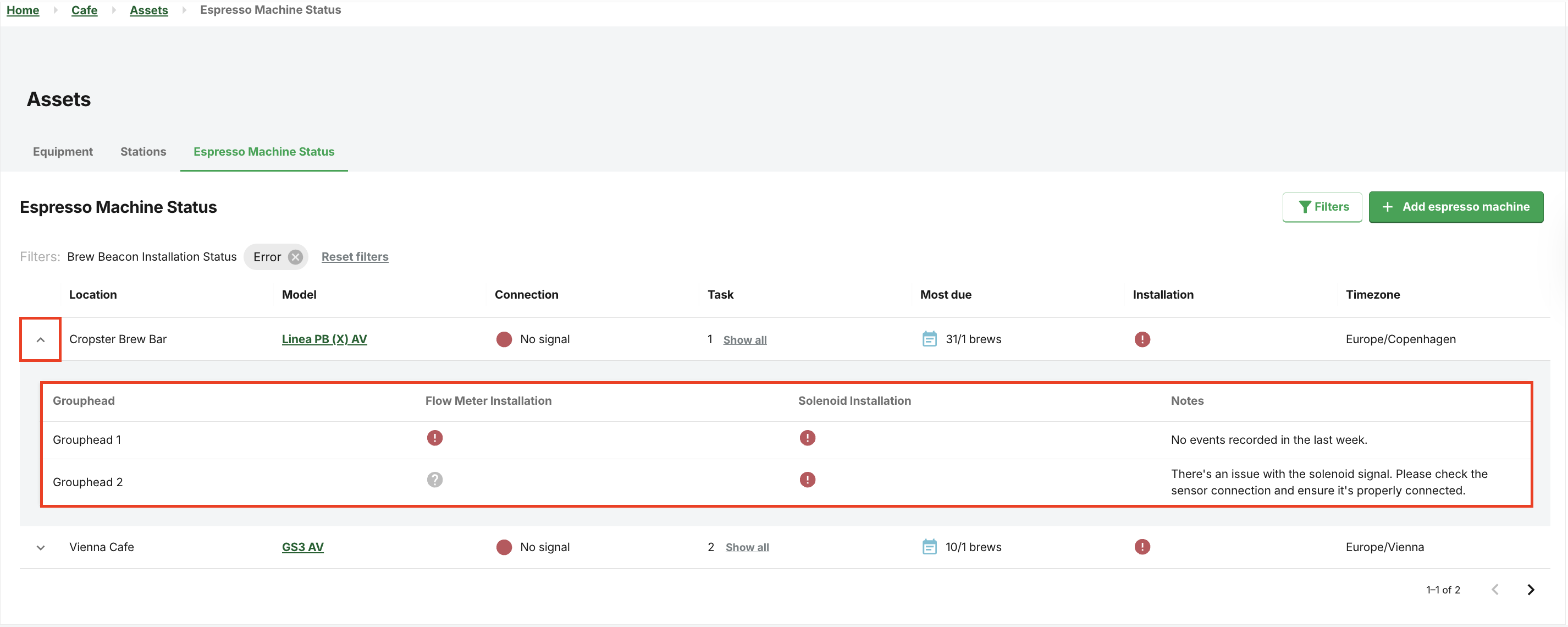
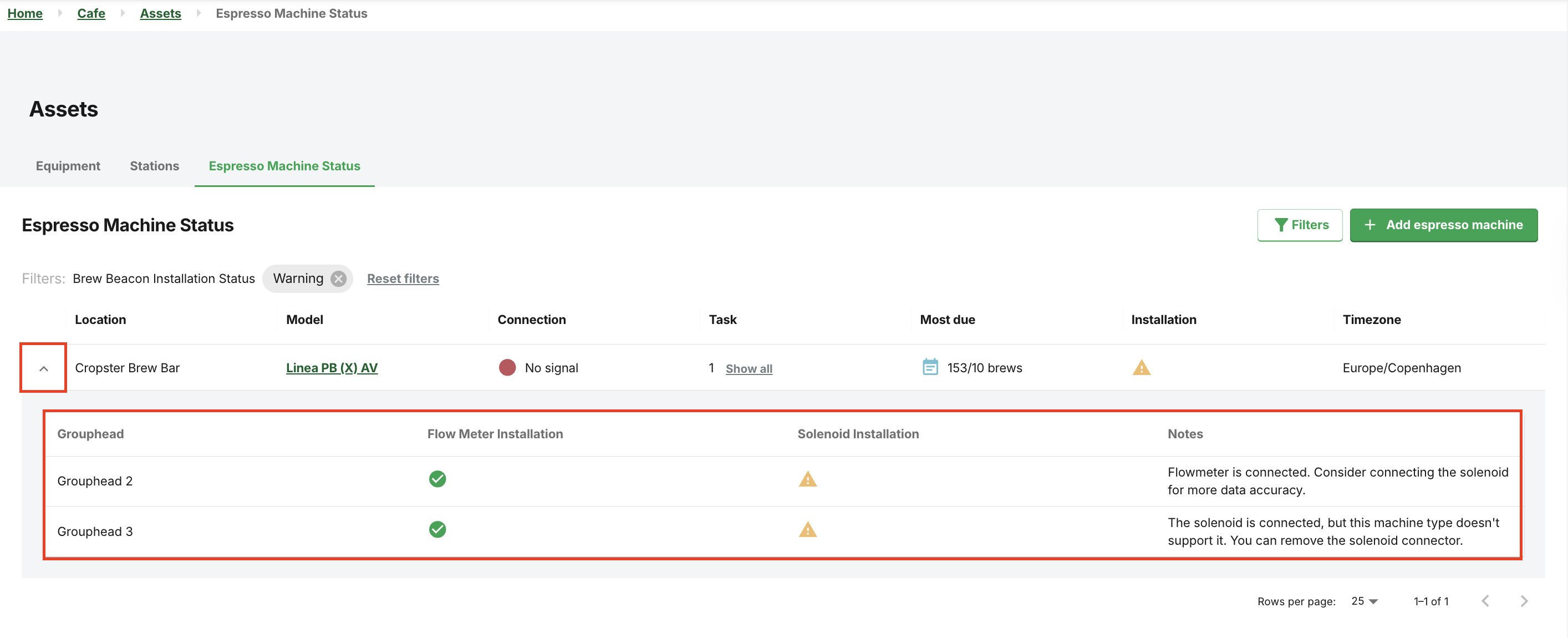
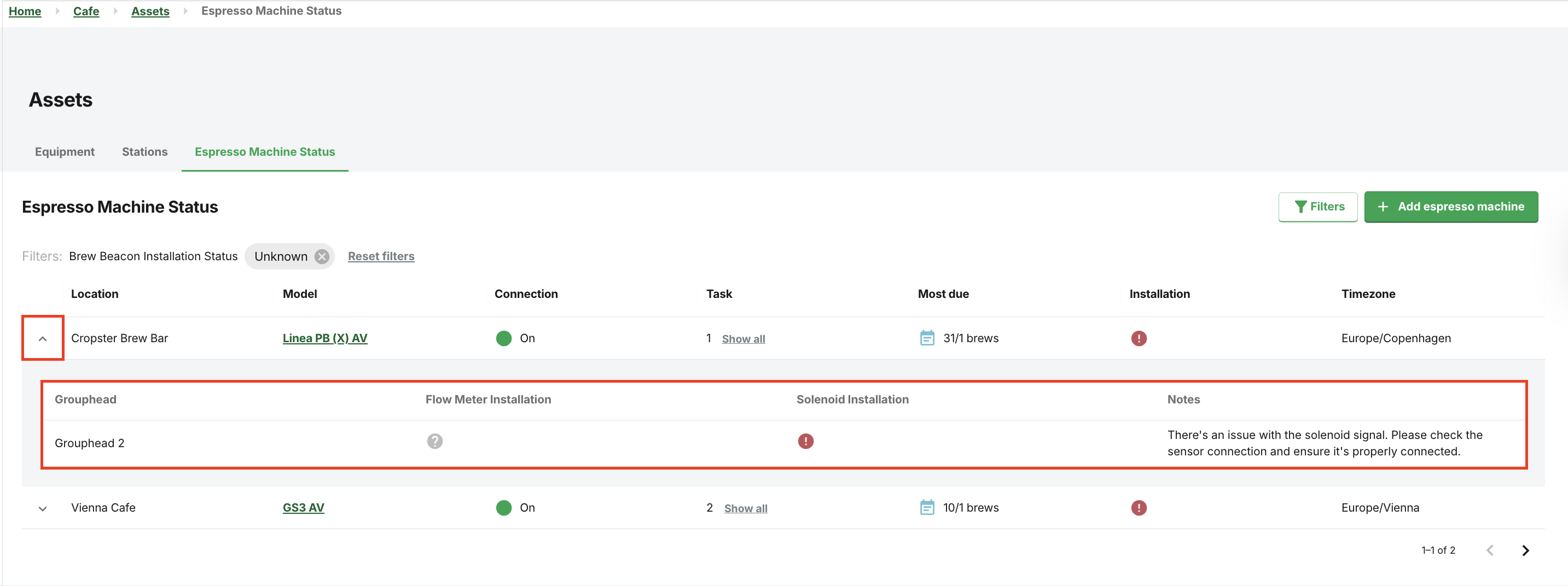
The Espresso Machine Status tab displays the installation status of every grouphead.

The table will present the following key columns:
-
Location: Expand the table for installation status messages.

- Model: Click Model name for the machine details page.
-
Connection
- On: The connection is active, the espresso machine is successfully transmitting data.
- Pending: The espresso machine is not connected.
- No signal: The espresso machine is offline.
-
Task: Only Production tasks are displayed here. An icon will display the total number of tasks for the espresso machine; select Show all to view the full details of each task.

- Most due (task): Most urgent task(s),
-
Installation: This displays your installation status: Hover over the icons for detailed detection explanations.

- Timezone
Customizing the Espresso Machine Status tab
Customization options are also available for the Equipment and Stations tabs.

The customisation options include:
- Sort by
- Pin to the left
- Pin to the right
- Hide column: Hide the column from your table.
-
Manage columns: Select the checkboxes to customize the data displayed in your table.
The installation statuses
Click the dropdown next to Location to expand the view.
Monitor all associated groupheads at a glance to distinguish between active machines and those needing service:
-
Installation status: Good. The espresso machine is connected and sending healthy data.
-
Installation status: Error. The error messages vary based on the detected issue.
-
Installation status: Warning. The warning messages vary based on the detected issue, e.g., “The solenoid is connected, but this machine type doesn't support it. You can remove the solenoid connector.”
-
Installation status: Unknown. Expand the dropdown next to the Location field to view system messages in the Notes field.
-
Installation status: No signal. The espresso machine is offline.
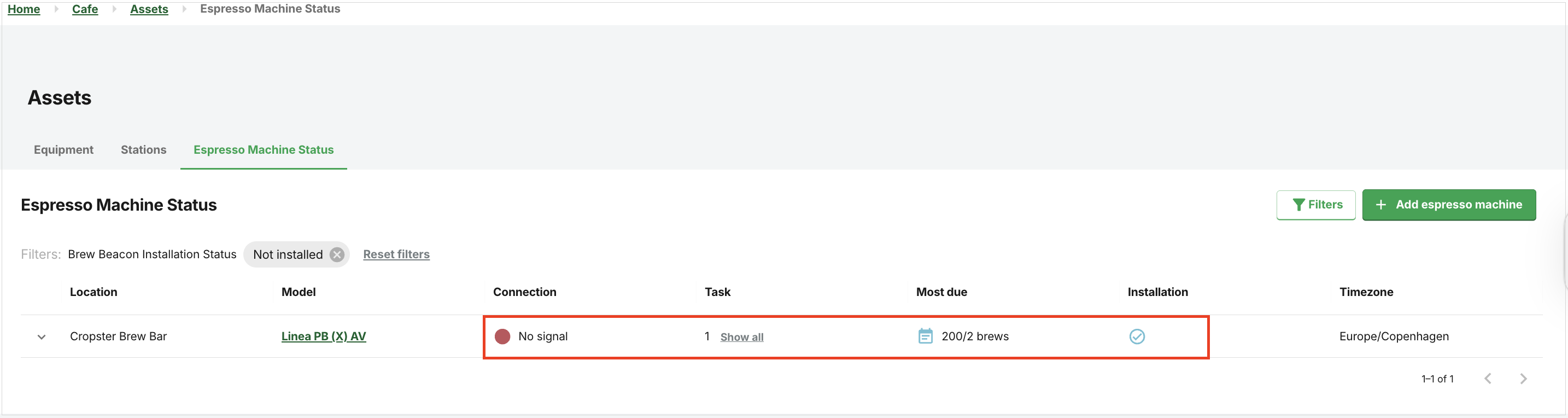
If you are not sure how to resolve a connection issue, please contact our Customer Support Team with a screenshot of your Espresso Machine Status page and the error message you received.
Using filters
To refine the search on the Espresso Machine Status tab, click on the  Filters button to display the filter selection:
- Location
-
Connection
- On
- No signal
- Pending
-
Installation
- Good
- Error
- Warning
- Unknown
- Not installed

💡 Tips and Recommendations:
- You can select multiple locations, connections, and installation statuses at the same time.
- Clicking theFilters button will also hide the Filter options, and you can return to the main view.
If you have further questions, feedback, or concerns, please submit a support ticket directly from support.cropster.com.