Managing Equipment

Table of Contents
You need to have the Cafe Manager's (Group Administrator's) permission to perform the steps outlined in this article.
Overview
This article will explain how to manage Equipment across Locations and link it to Brews for a greater overview.
With the Equipment feature, you can:
- Have a comprehensive overview of your key brewing devices across your locations.
- Connect Recipes and Brews to the specific equipment they were brewed on.
- Gain valuable insights into how they reflect the quality.
Learn how to link Tasks to connected equipment for efficient task management.
Instructions
Adding new Equipment
- Log in to the online platform C-sar.
- Navigate to Cafe > Assets > Stations.
-
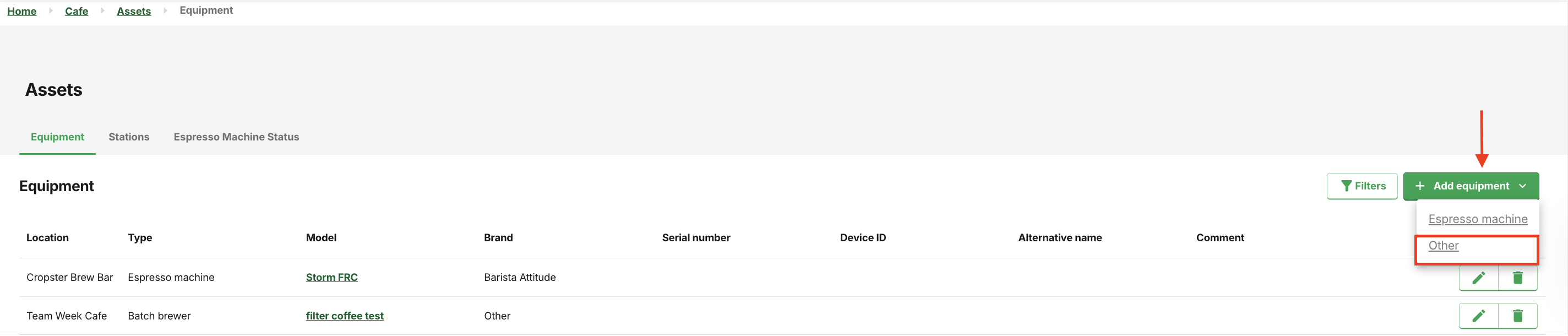
Click +Add equipment and choose from the available equipment option:
- Espresso machine
- Other (e.g., Grinder, Water boiler)
-
Select Other.
-
Enter the following information:
* Indicates mandatory fields.- *Equipment type
- *Equipment brand
- *Equipment model
- Serial number
- Alternative name
- *Location
- Stations
- Comments
-
Click Add equipment to submit.
Using filters on the Equipment tab
To refine the search on the Equipment tab, simply click on the Filters button to display the filter selection:
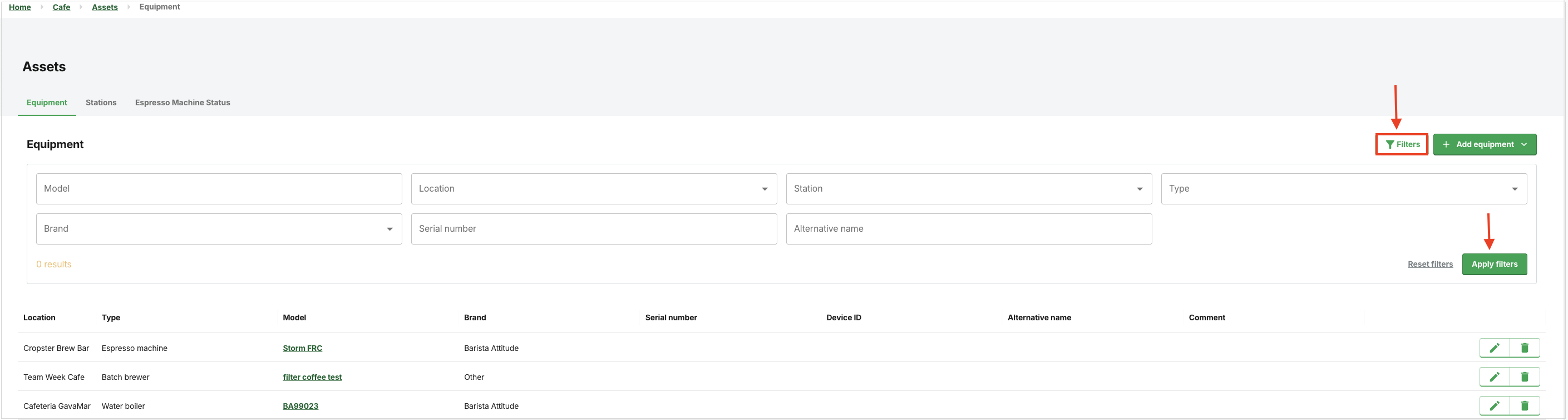
Apply filters to refine your search by criteria:
- Model
- Location
- Station
- Type
- Brand
- Serial number
- Alternative name
Editing Equipment
- Log in to the online platform C-sar.
- Navigate Cafe > Assets > Equipment.
-
Locate the equipment to modify and click the
-png-1.webp) Edit button on the right.
Edit button on the right.
-
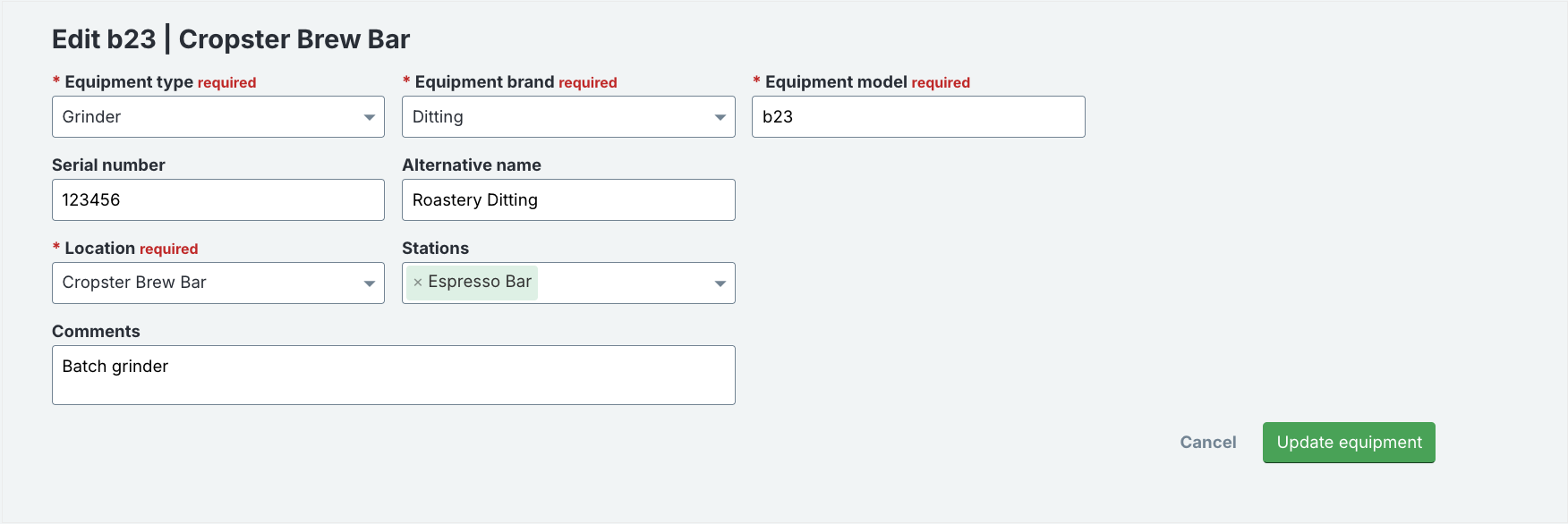
You can modify the following details:
- *Equipment type
- *Equipment model
- *Number of group heads
- Serial number
- Alternative name
- *Location
- Stations
-
Comments
-
Click Update equipment.
Deleting the Equipment
This action is irreversible: deleting the Equipment permanently removes it and cannot be recovered.
- Log in to the online platform C-sar.
- Navigate Cafe > Assets > Equipment.
-
Locate the equipment to delete and click the
.png) Delete button on the right.
Delete button on the right.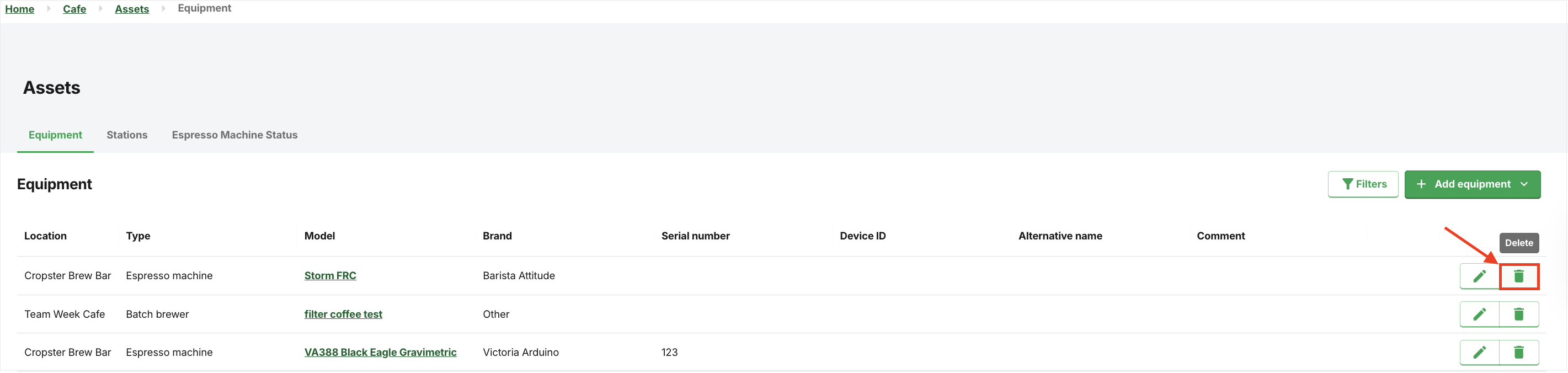
- A warning will display: "Are you sure you want to delete this equipment permanently?" Click Delete to proceed.
- The equipment will be deleted shortly.
If you have further questions, feedback, or concerns, please submit a support ticket directly from support.cropster.com.
