Contact Us

If you still have questions or prefer to get help directly from an agent, please submit a request.
We’ll get back to you as soon as possible.

Please fill out the contact form below and we will reply as soon as possible.

  • Contact Cropster Support
English (US)
US English (US)
DE German
  • Home
  • Cafe
  • Assets Management

Creating Stations

Written by Nikolett Takacs

Updated at November 28th, 2025

Contact Us

If you still have questions or prefer to get help directly from an agent, please submit a request.
We’ll get back to you as soon as possible.

Please fill out the contact form below and we will reply as soon as possible.

  • Connecting your roast machine
    General information Plug&Play connectors Alternative connection options Sample & Multi-barrel roasters Temperature sensors Drivers
  • Roast
    Getting Started Inventory Management Sample Management Roast Scheduling Roasting Processes Reporting Troubleshooting
  • Roasting Intelligence
    Getting Started Using Roasting Intelligence Roasting Intelligence AI Features Customization and Preferences Troubleshooting
  • Cafe
    Espresso machine connection Getting Started Cafe Operations Cafe Telemetry Cafe Inventory Recipe Management Assets Management Troubleshooting
  • Commerce
    Getting Started Product Management Order Management Inventory Management Reporting Troubleshooting
  • Origin
    Getting Started Operations Reporting
  • Quality Control
    Cupping Physical Analysis
  • Sharing & Exporting Cropster Data
  • Account & Administration
    General Account Management General User Management Troubleshooting
+ More

Table of Contents

Best Practices Creating new Stations Using filters on the Stations tab Editing Stations Deleting Stations

Overview 

This article will explain how to add new, edit, and delete Stations for Cropster Cafe. Stations group equipment commonly used together for brewing, such as grinders, espresso machines, and scales.

With Stations, you can:

  • Organize equipment used together for brewing.
  • Assign a Reference Brew per station for a Recipe.


Best Practices

Create a separate Station for each brewing method (like Espresso, Manual, or Batch), ensuring you group the corresponding equipment; for locations with multiple espresso or filter brewers, designate a unique station for each one.

Manual brews logged on a mixed station (manual and espresso equipment) will appear on the espresso machine's detail page.


Creating new Stations

  1. Log in to the online platform C-sar.
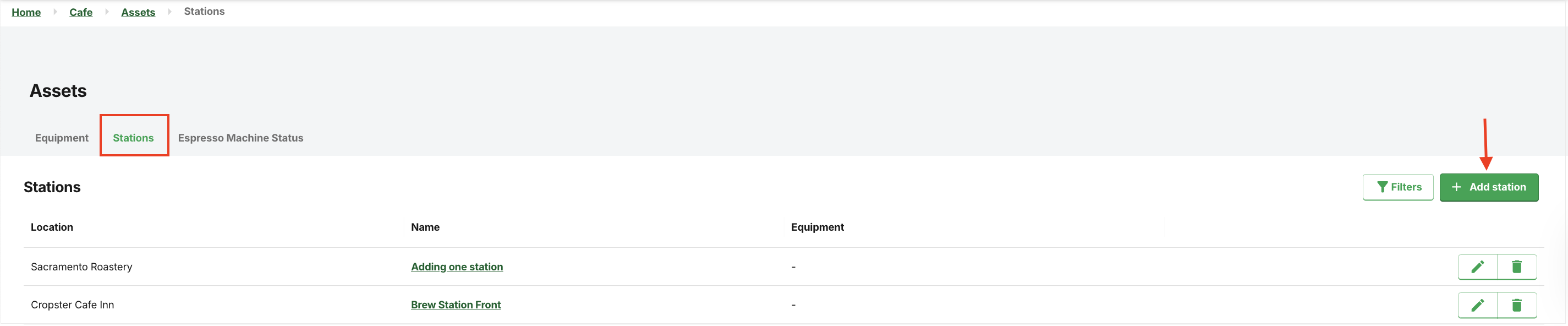
  2. Navigate Cafe > Assets > Stations tab.
  3. Click Add station.
    Screenshot 2025-08-19 at 17.45.35
  4. Enter the following details:
    * indicates mandatory fields
    • Name
    • *Location
  5. Click Create station.


Using filters on the Stations tab

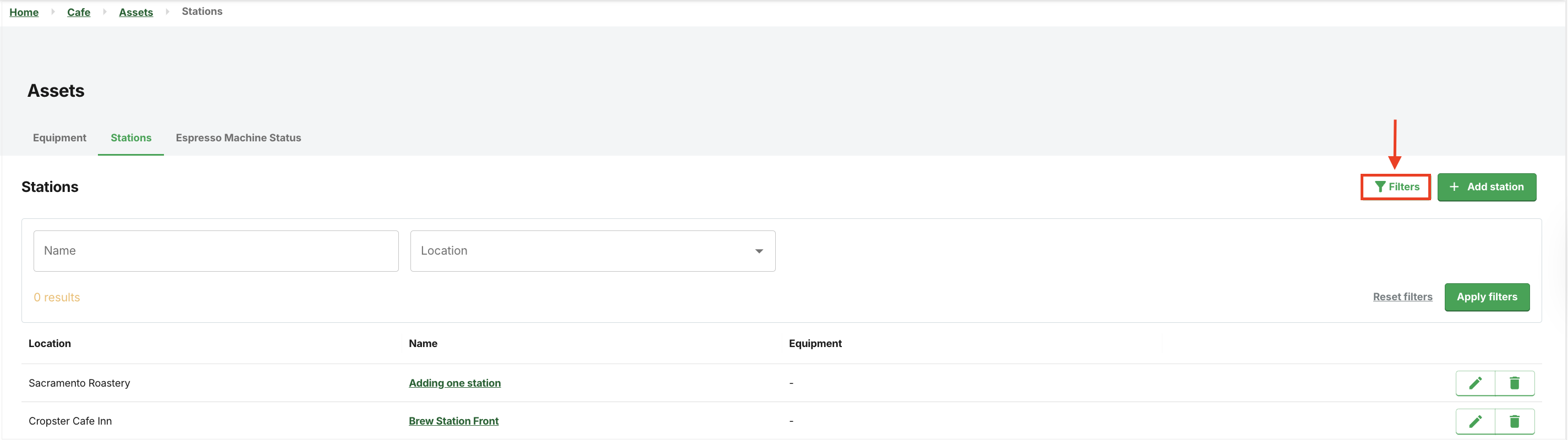
To refine the search on the Stations tab, simply click on the Filters button to display the filter selection:

  • Name
  • Locations
Screenshot 2025-08-19 at 17.46.42


Editing Stations
 

You cannot change the location of a Station. 


  1. Log in to the online platform C-sar.
  2. Navigate Cafe > Assets > Stations tab.
  3. Click the Edit button on the right.
  4. You can modify the following details:
    * indicates mandatory fields
    • *Name
    • Equipment
  5. Click Update station to save changes.


Deleting Stations
 

This action is irreversible: deleting a Station permanently removes it and cannot be recovered.


  1. Log in to the online platform C-sar.
  2. Navigate Cafe > Assets > Stations tab.
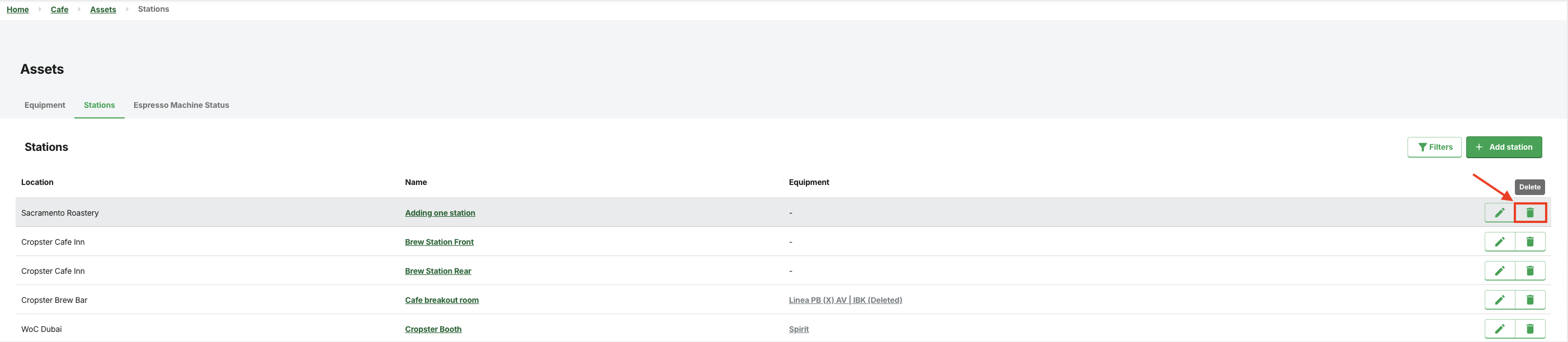
  3. Locate the station to delete and click the DeleteIcon@2x (1) Delete button on the right.
    Screenshot 2025-08-18 at 10.14.11
     
  4. A warning will display: "Are you sure you want to delete this equipment permanently?" Click Delete to proceed.
  5. The station will be deleted shortly.

If you have further questions, feedback, or concerns, please submit a support ticket directly from support.cropster.com. 

stations assets overview page

Was this article helpful?

Yes
No
Give feedback about this article

Related Articles

  • Managing Equipment
  • Cropster Cafe Onboarding

Contact

USA: +1 916-550-1682

(MON – FRI 8 AM – 5 PM PST)

Contact Us

  • Download Roast Intelligence
  • Create SLIC QR-Code
  • Scan SLIC QR-Code
  • Connect your Roast Machine
  • Sign up for RMM Beta Program
  • About Us
  • Careers
  • Contact
  • Partners
  • Privacy
  • Legal Notice
  • Terms of Service
  • EU Whistleblowing directive
  • Create a Support Ticket
  • Cropster Helpdesk
  • Cropster System Status
  • Product Updates
Expand